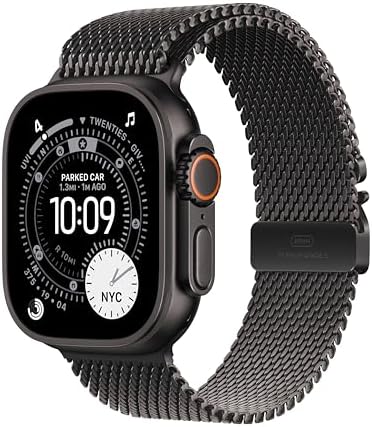
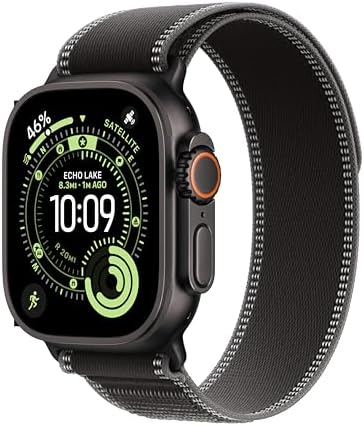
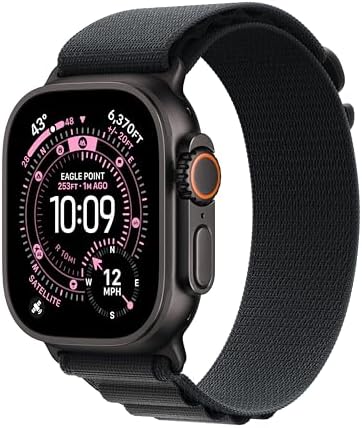
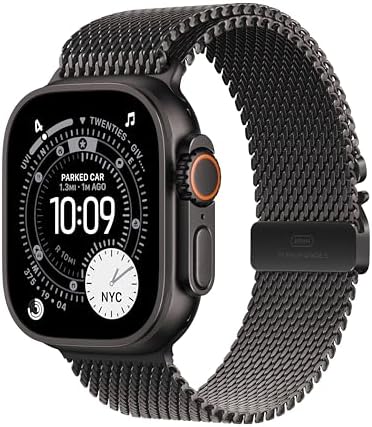
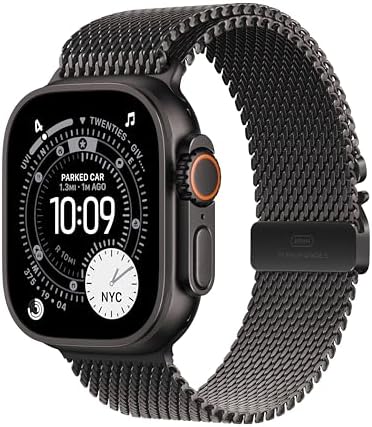
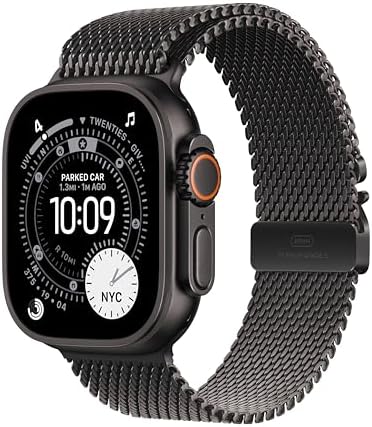
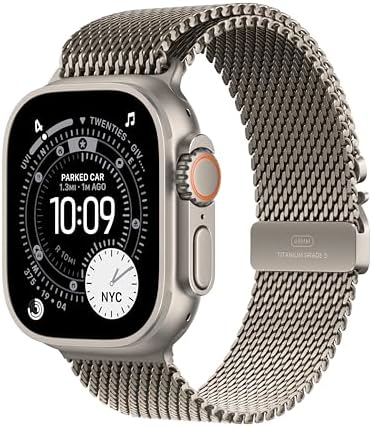
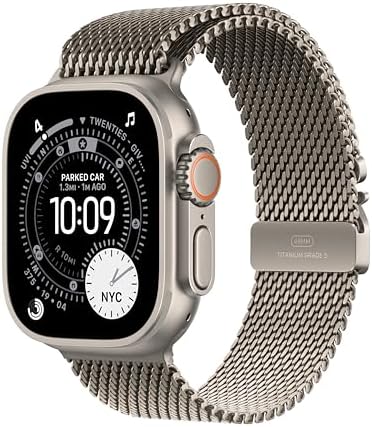
The Apple Watch Ultra 3 pairs a rugged titanium case with a display that reaches up to 3,000 nits, making it readable under direct midday sun on a glacier or a desert trail. Its 49mm case houses a wide slate of outdoor-oriented tools, and the user guide below explains how each layer of that toolkit works in practice.
Setup begins with pairing the watch to an iPhone running current watchOS software, after which the companion Watch app becomes the control center for faces, notifications, and health permissions. Settings configured on the phone appear almost instantly on the wrist, and the Apple brand’s device ecosystem keeps faces, alerts, and health permissions synchronized across hardware.
First Setup and Pairing Fundamentals
Holding the watch near an unlocked iPhone triggers the pairing prompt automatically. The on-screen animation, captured through the camera, confirms the device identity before a restore option appears. Users migrating from an older model can restore from a backup, while first-time owners choose a clean setup and sign in with an Apple Account.
Once paired, the Watch app divides configuration into clear categories: notifications, sounds and haptics, display brightness, and health permissions. Enabling cellular service requires activation through the carrying carrier, and satellite features must be confirmed separately because they depend on regional coverage and device provisioning.
- Battery preferences: Low Power Mode extends operational time significantly during long outings.
- Display settings: Always-On brightness and wake duration can be tuned for daylight readability.
- Health permissions: Heart rate, blood oxygen, and sleep tracking each request separate approval.
- Cellular activation: Required for standalone calls, messages, and emergency features away from a phone.
Navigating the On-Wrist Interface
The physical controls carry more function than the standard model line. The Digital Crown rotates for scrolling and presses for the app grid, while the side button opens the dock or powers the device. The Action button is the differentiating element: a single press can start a workout, mark a waypoint, begin a dive, or trigger the flashlight, and the assignment is configured inside the Watch app under Action Button settings.
Gestures round out the navigation. A double tap of thumb and index finger answers calls or dismisses alerts without touching the screen, a feature that proves useful when hands are occupied with trekking poles or climbing equipment. Swiping between watch faces and swiping up for the Smart Stack keeps frequently used information one motion away.
Satellite Communication and Off-Grid Safety
Satellite connectivity marks the most consequential addition to this generation. When cellular and Wi-Fi signals are absent, the watch can connect directly to orbiting satellites to send messages and share location with emergency services. The function requires a clear view of the sky and a guided pointing procedure, both explained in the on-watch prompts.
Emergency SOS over satellite activates by holding the side button, after which the watch walks the user through a short questionnaire about the nature of the emergency. Regular satellite messaging lets hikers and sailors send check-in texts to contacts from remote terrain. On the Apple Watch Ultra 3 GPS + Cellular 49mm, satellite messaging and Emergency SOS are built into the hardware, so no separate accessory or subscription module is needed to reach a satellite from a ridge line.
Battery Management for Multi-Day Outings
Apple specifies up to 42 hours of normal use and up to 72 hours in Low Power Mode, and understanding which settings consume the most energy makes those figures actionable. Satellite transmissions, GPS tracking with maximum accuracy, and always-on display brightness are the heaviest drains, so the guide recommends adjusting each according to the length of the trip.
| Usage Scenario | Reported Runtime | Key Setting |
|---|---|---|
| Normal daily use | Up to 42 hours | Standard power profile |
| Extended expeditions | Up to 72 hours | Low Power Mode enabled |
| Fast charging | Up to 80 percent | In approximately one hour |
Fast charging recovers most of the battery within roughly an hour, so a resupply stop or a shower break can restore enough capacity for another day on the trail. Charging behavior and battery health statistics are viewable in Settings, where optimized charging limits time spent at full capacity to preserve long-term cell condition.
Workout Tracking and Training Tools
The workout app organizes activities into running, cycling, swimming, hiking, and multisport categories, with additional profiles for diving and winter sports. Precision Start skips the countdown so a session begins instantly, a small detail that matters at the start line of a race. Custom workouts allow pace targets, heart rate zones, and interval structures to be built on the phone and pushed to the wrist.
Running Metrics and Trail Guidance
Running dynamics report ground contact time, vertical oscillation, and stride length, giving coaches and athletes objective data for form adjustments. Route building through the Maps app lets a course be drawn on the phone screen and followed with turn-by-turn haptic alerts, and the compass app supports backtracking to retrace a path when visibility drops.
Water Activities and Depth Handling
The depth app activates automatically when the case enters water, recording dive profiles with maximum depth, duration, and water temperature. A water lock prevents accidental taps during swimming, and the speaker ejects retained water through a tone sequence after the session ends. Apple rates the case for recreational scuba to 40 meters and for swimming and high-speed water sports at 100 meters.
Health Monitoring and Sleep Insights
Continuous heart rate sampling, ECG readings, and blood oxygen measurements feed the Health app, and each requires explicit permission during setup. Sleep tracking records time in bed, time asleep, and interruptions, while a nightly temperature reading establishes a baseline that helps surface trends over weeks rather than single nights.
Alert settings deserve attention in the user guide because thresholds are personal. High and low heart rate notifications, irregular rhythm alerts, and fall detection each have separate configuration screens, and fall detection can be set to trigger only during workouts or at all times. Crash detection and emergency SOS activate automatically when sensors register a severe impact.
Watch Faces, Apps, and Customization
The face gallery includes configurations built around outdoor priorities, such as Wayfinder for compass heading and elevation, or Modular Ultra for maximum complication density. Editing a face involves pressing and holding the display, then adjusting complications, colors, and time display styles. Night Mode shifts the interface to red tones for low-light environments, preserving dark adaptation after sunset.
App management happens in two places: the Watch app for installing and removing titles, and the App Store on the watch itself for direct downloads over cellular or Wi-Fi. Background app refresh, notification grouping, and complication placement all live in the same settings hierarchy, making the Watch app the single most useful reference point for customization questions.
Maintenance, Water Resistance, and Long-Term Care
Rinsing the case with fresh water after ocean or pool exposure prevents salt and chlorine residue from affecting the seals and speaker mesh. The Ocean Band, designed for water sports, tolerates repeated immersion, while the titanium case resists scratches from rock and metal contact better than aluminum alternatives. Avoiding soap on the case during cleaning preserves the oleophobic coating on the display.
Software updates deliver new features and refinements to the tools described throughout this guide, and installing them regularly keeps satellite communication and health algorithms current. Battery health management, storage review, and reset procedures all live in Settings, and Apple support documents provide the authoritative reference when on-watch troubleshooting does not resolve an issue.
The Ultra 3 positions itself as a device that rewards familiarity. Each feature described here connects to a real scenario: a satellite message sent from a ridge line, a dive logged in cold water, a route followed by haptic turns through fog. Treating the user guide as a living reference rather than a one-time read transforms a capable piece of hardware into a dependable instrument for whatever terrain lies ahead.